
Guerilla Networking with OpenSSH

Disclaimer
While most of the actions described here are not malicious, it is possible to raise the ire of certain large actors. For example, some countries have national firewalls, laws against VPNs, or other restrictive policies. They may not take kindly to you attempting to get around their rules. Be careful out there.
Also, network administrators may get upset if you give the whole internet a proxy connection into their network. Don't do stupid things without permission. I am not responsible for your actions.
Introduction
It happens to all of us. At some point, you need to establish some sort of connection which is obstructed by the existing network topology. For example:
- You want to access an internet resource on some obscure port, but you're on some restrictive connection which blocks outbound access to that port. (Public WiFi often does this.)
- You want to temporarily open a server to the internet, but it's behind NAT and you can't set up port forwarding.
- You want to access IPv6 resources from anywhere.
These are the types of issues which can be worked around with proxies, port forwarding, and similar tools. Perhaps the easiest way to pull this off is with SSH, as many implementations support this type of functionality. OpenSSH is my own preference and it's what I use in this post; other implementations (such as PuTTY) may also work but syntax will vary.
I use the term "guerrilla networking" because this involves getting around the barriers of an existing network typology without actually changing the topology. As a result this is best suited for temporary small-scale operations. For other needs, consider something more "orthodox" and structured, such as a VPN.
Prerequisites
This post assumes a knowledge of basic configuration/usage of OpenSSH, both client-side and server-side.
Many of the examples contained here require at least one machine to function as an internet-accessible server. (Directly connected, or behind NAT with port forwarding, etc.) It must also have a semi-recent version of OpenSSH installed and running. Let's call this machine sshServer and assume we can access it from the internet by that name (ping sshServer, ssh user@sshServer, etc).
And of course, you also need a client machine with the same software. (I imagine this as a personal laptop running macOS or Linux, but it could be anything.) Let's call it sshClient.
OpenSSH Commands
While there are many options for OpenSSH, the examples here will be focus on the following:
ssh -L ...sets up port forwarding from the local (client) side to some destination on the remote side.ssh -R ...sets up port forwarding from the remote side to some destination on the local side. (Remote port forwarding.)ssh -D ...sets up a proxy which can be accessed on the local side and comes out on the remote side.
The above options can be combined if needed, e.g. ssh -L [PARAMS] -D [PARAMS] user@sshServer.
The scenarios below will show typical syntax for each command. There are other, fancier options for these flags not covered here; refer to the man page for all the gory details.
Also, we're not going to cover how to organize SSH terminal sessions, send them to the background, etc. I like to use tmux for that, but you may have your own solution.
Scenario 0: Circumvent Port Blocking
Suppose you're on some public WiFi network (maybe at an airport) and you need to connect to port 12345 of some server (let's call it destinationServer). The topology looks something like this:

You try to connect and it times out -- turns out the firewall is blocking outbound connections on that port for some reason. (The firewall might block all "nonstandard" ports, which sometimes happens on public WiFi.)

But suppose we can still access sshServer over port 22. Let's use that to our advantage:
user@sshClient:~$ ssh -L 12345:destinationServer:12345 user@sshServerThis forwards port 12345 on the local machine to port 12345 on destinationServer. But it's not a direct path: the connection is tunneled from sshClient to sshServer over the SSH connection, and then it travels to destinationServer from there.
You can now connect to localhost:12345 on sshClient, and the connection is whisked away to destionationServer. Like so:
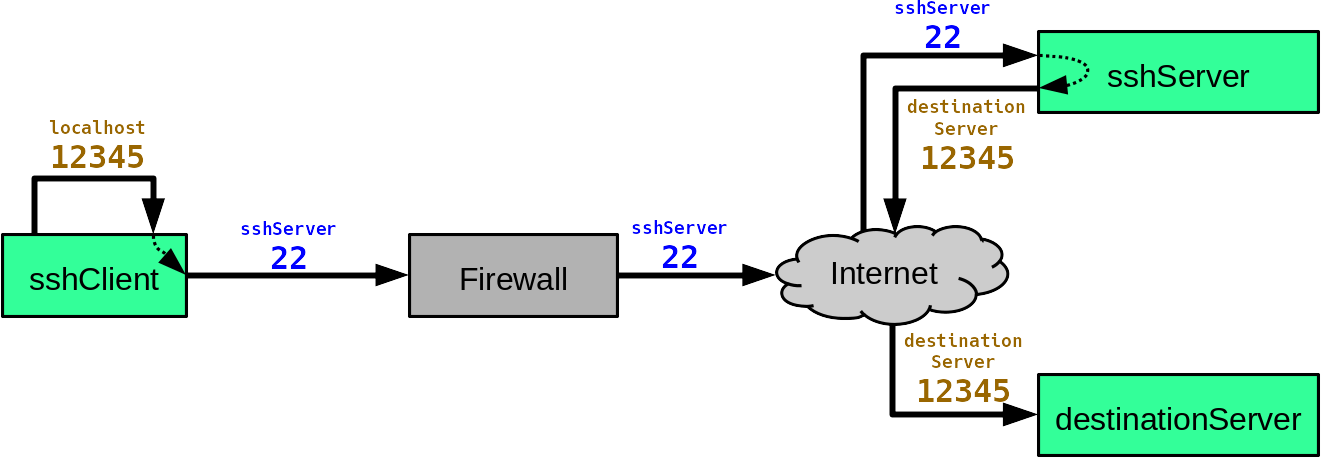
Note that the local network (read: that pesky firewall) has no idea what is going on. It only sees your connection to sshServer:22.
Note on SSH ports: It is often recommended for SSH servers to listen on a nonstandard port for the sake of obfuscation. However, if this port is "too nonstandard" it might also be blocked by certain firewalls. A middle-ground solution is to use a port that is standard, but not for SSH, such as 80 or 443. In this post we assume SSH is on the usual port 22 for the sake of simplicity.
destinationServer is similarly confused. It thinks the connection originates at sshServer, and doesn't receive any traffic from sshClient (weird exploits notwithstanding). However, a proxy is typically better for masking your source IP. And speaking of...
Scenario 1: Proxies
There are multiple reasons for wanting to use a proxy. Maybe you're on a network which blocks certain websites, spies on you, etc. Or maybe you have some destinations you want to hide your IP address from.
Note however that a self-made proxy is not always a good choice for these scenarios. The proxy's IP address can be traced back to you, which can cause issues. The most secure solution is often Tor or an anonymous VPN.
What a self-made proxy is good for is when you travel. You might visit a school with a restrictive internet policy. Or you might travel abroad, in which case lots of websites do annoying things, like redirect you to a page in the local language (Google loves to do this). And certain websites don't like when you log in from the wrong IP address (Facebook quizzes you on who your friends are, for example). A self-made proxy can get you around these issues, and it's typically faster than Tor and less hassle than setting up a VPN.
The command is relatively simple:
user@sshClient:~$ ssh -D 10000 user@sshServerThis opens a proxy on localhost:10000, which comes out on the remote side. (Note that the number 10000 is arbitrary, just about any port number will do.) A proxy requires you to manually configure programs to use a it (and then un-configure them when you're done), but many programs have this option somewhere.
For a topological example, let's take a look at a "blocked site" scenario:

Setting up a proxy gets you around the problem quite handily (assuming sshServer itself isn't blocked):
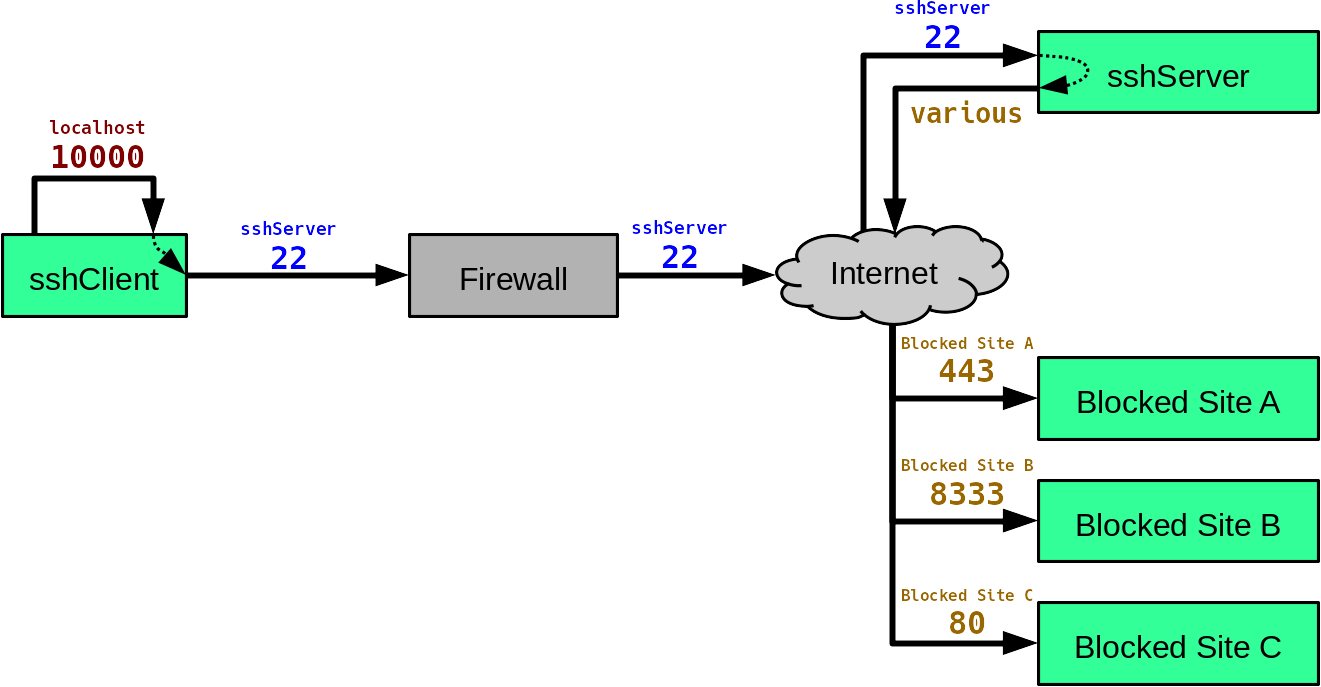
The destinations think you are sshServer, so this also prevents website localization while travelling.
A proxy can also allow you to access resources from its local network, or provide you with IPv6 access (the proxy itself needs IPv6 for this, of course). Here's an example of a proxy on a dual-stack home network:
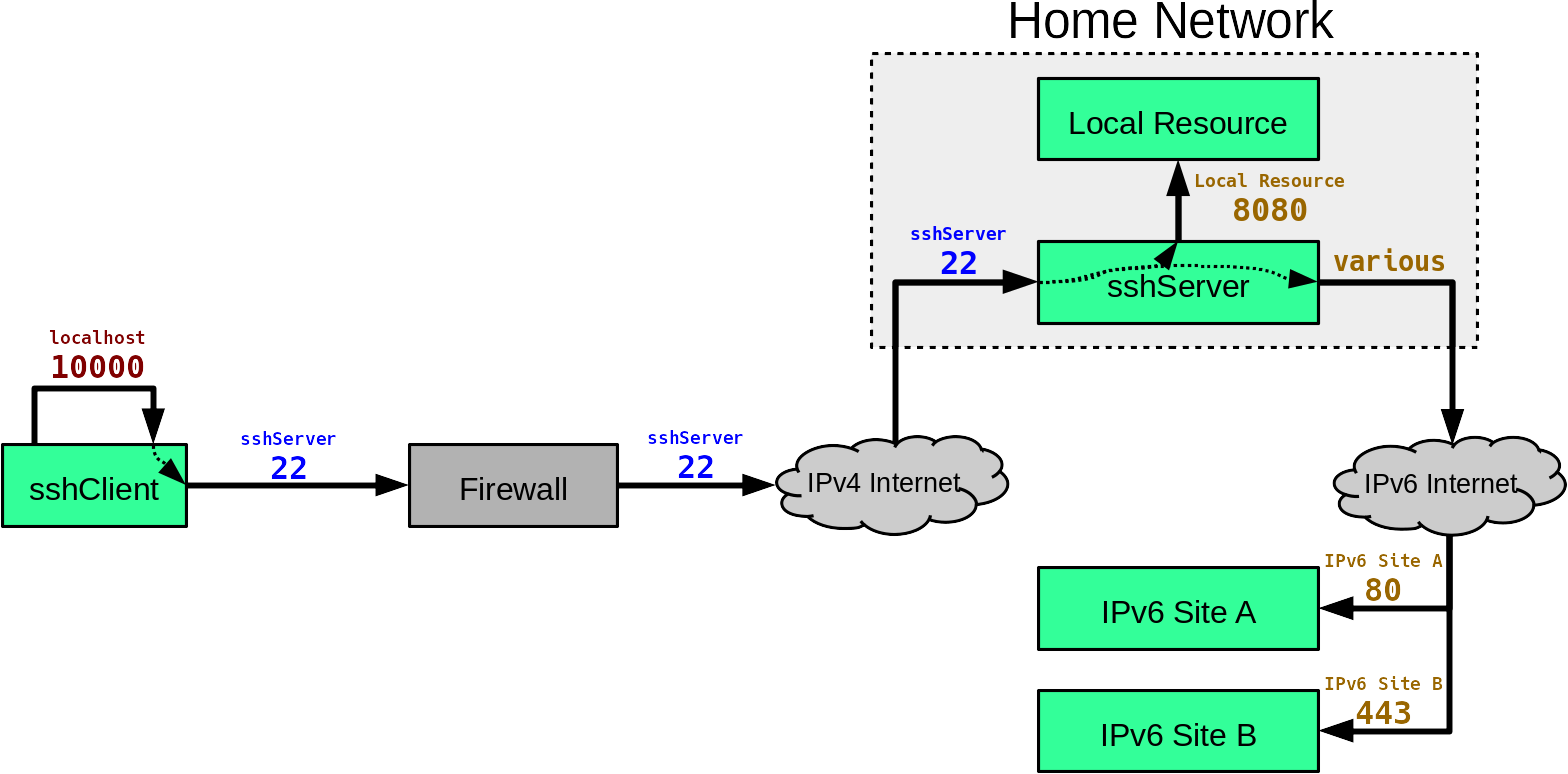
You might wonder, why not just set up port forwarding on the router to access those local resources? This can sometimes work, but in many cases it's a security nightmare. Most "local resources" (e.g. printers, IP cameras) are not meant for direct internet access, and have little to no connection security.
Scenario 2: Inbound Access
This happens every now and then. You need to provide inbound access to a server, but you can't do it the normal way. Maybe you don't control the router, maybe the server is buried in a company network behind multiple firewalls, etc.
Let's call the server buriedServer, and let's suppose someone wants to access port 443 from the internet. Clients can try to connect to buriedServer's public IP address (labelled PublicIP) but it just gets blocked by the firewall:
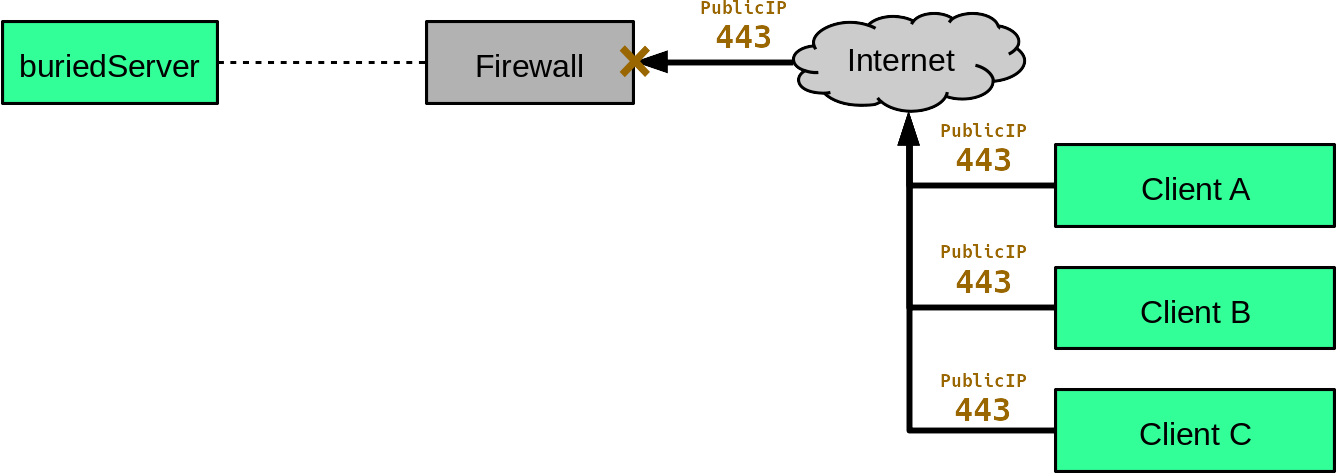
This can be circumvented with remote port forwarding.
Config Setup (sshServer)
For this to work, we first need to make a small change to a configuration file. In sshServer, open /etc/ssh/sshd_config and add the line:
GatewayPorts clientspecifiedAnd then restart the SSH daemon. This allows forwarded ports to accessed by machines other than localhost.
Invoking (sshClient)
If we put sshClient on the same network as buriedServer, this command can do the trick:
user@sshClient:~$ ssh -R *:443:buriedServer:443 user@sshServerThis forwards connections from sshServer:443 to buriedServer:443. The connection is tunneled from sshServer to sshClient, and then sent along to buriedServer. Like this:
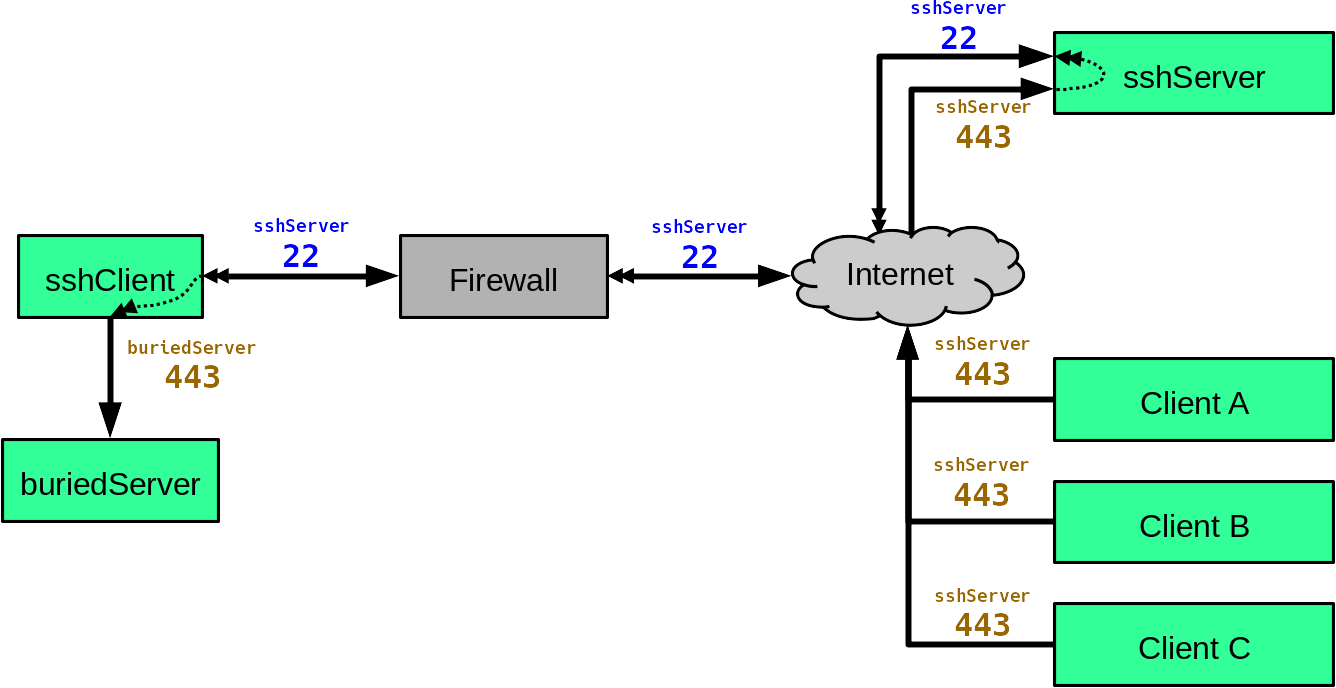
Note that the forwarded connection travels backwards through the SSH tunnel. Single arrows represent TCP connections, double arrows represent tunneled connections.
That's the nice thing about remote port forwarding: you can take an existing ingress point (in this case, that of sshServer) and throw it wherever you want. It's also interesting to note just how little is required here: sshClient only requires outbound internet access, and buriedServer technically doesn't need internet access at all. All it needs is a connection to sshClient.
The downside is that the resulting conventions are a little strange: clients must connect to sshServer:443 instead of publicIP:443, and buriedServer thinks all incoming connections are from sshClient. (Which is why buriedServer only needs a connection to sshClient.)
Scenario 3: Remote Network Exploration
Now let's get complicated.
Suppose you've been contracted to examine a corporate network for vulnerabilities. And this corporate network is in another state. And travelling is not the best option.
Depending on the situation, it might be possible to install a mole for remote testing. You ship them the device, they install it on the network, you access it remotely to examine the network, then they ship it back to you when you're done.
The situation might look something like this:
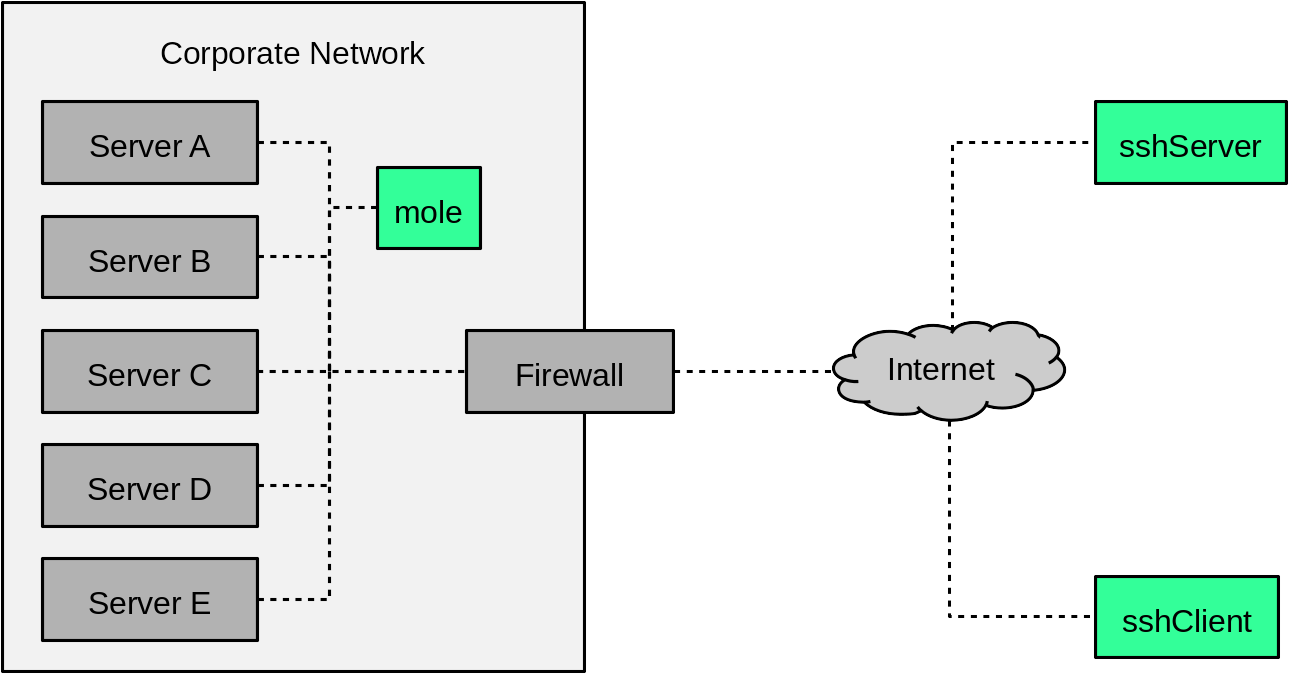
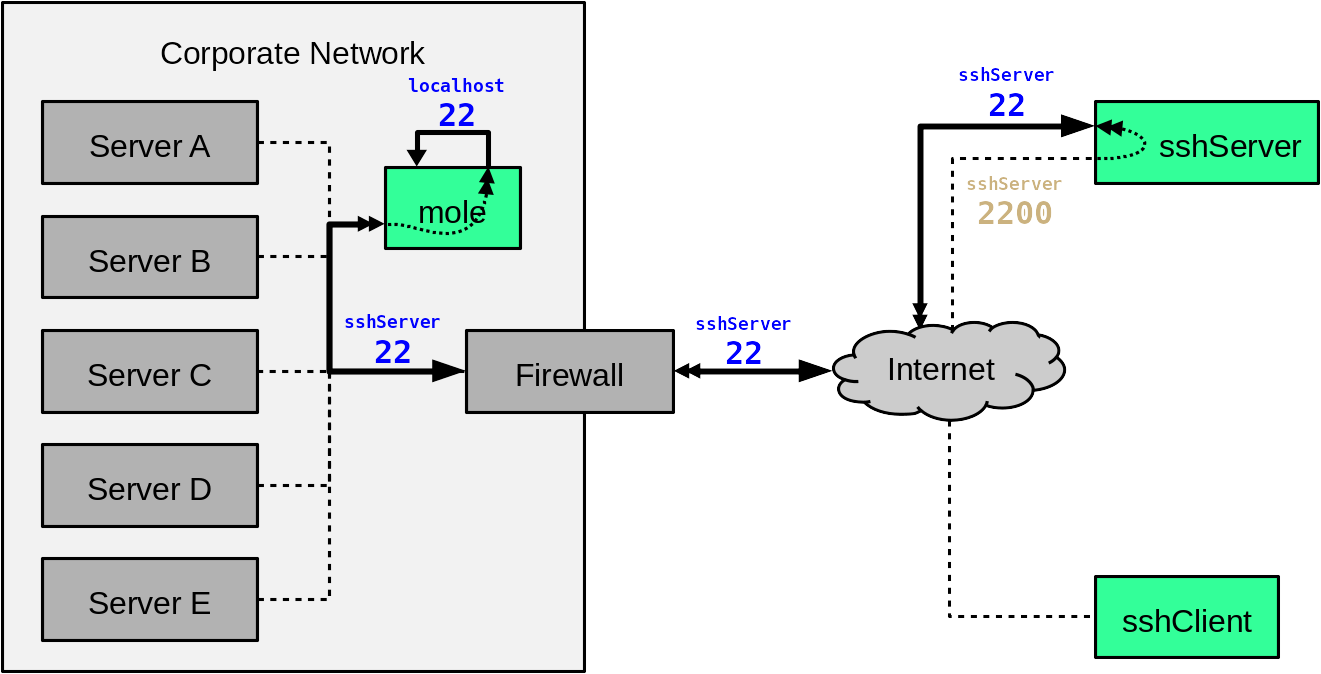
The mole is both an SSH client and an SSH server. When it powers up, it automatically reaches out to sshServer to open an inbound path:
moleUser@mole:~$ ssh -R *:2200:localhost:22 tempUser@sshServerAssume the script has some clever way of authenticating to sshServer without human intervention. Also, this requires sshServer to have GatewayPorts enabled, see Scenario 2 for details.
This forwards connections from sshServer:2200 to mole:22, like so:
With that in place, you can connect to the mole from sshClient by hitting sshServer on port 2200:
user@sshClient:~$ ssh -D 10000 moleUser@sshServer -p 2200Note that there is no user named moleUser on sshServer itself. The above syntax simply means "connect to sshServer:2200 and log in as moleUser". Because sshServer:2200 redirects to mole:22, the resulting user is moleUser@mole.
The above command also opens a proxy on port 10000 client-side, allowing sshClient to poke around the network from afar.
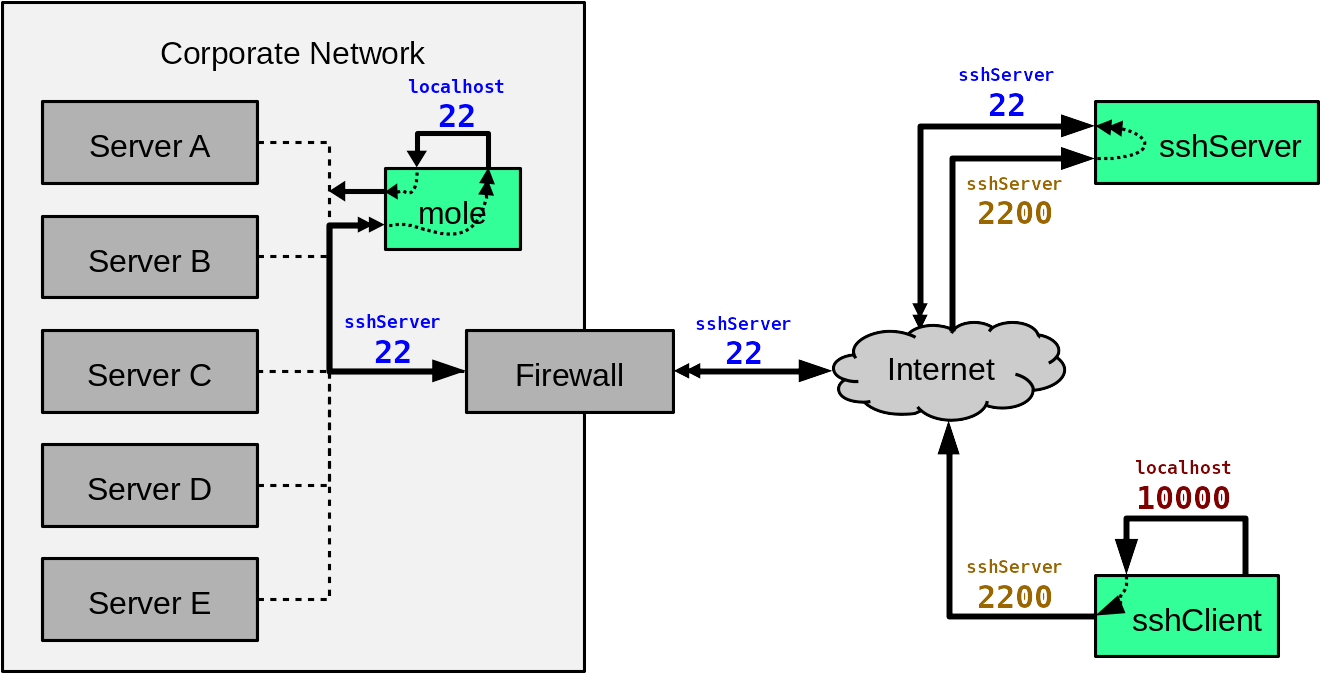
From here, you can use a remote shell to have the mole examine the network. In addition, applications on sshClient can access the network over the proxy. Note that this doesn't cover every conceivable use case -- graphical programs are slow on remote shells, and proxies aren't meant for low-level network testing -- but it should be "good enough" for a typical examination. If you really need to use that graphical port scan utility, you might have to put up with some glacial X11 forwarding (ssh -X) or set up an actual VPN (ssh -w, but let's not get into that).
Precautions
Because this scenario involves leaving the mole out of your physical possession for extended time, there is the chance that it could become compromised. (Moles do occasionally come back as double agents, after all.)
The simplest defense is to apply tamper seals or similar measures to the mole, however this isn't airtight. Depending on the situation (read: who you're dealing with) you may wish to take extra precautions. Give the mole some login passwords & SSH credentials you don't otherwise use, wipe it blank when you get it back, revoke its credentials on other systems when you're done, etc.
Oh, and delete tempUser@sshServer and all files it owns. Just in case.
Beyond this, conclusively eliminating attack vectors from a compromised mole to your other systems (or future clients' systems) can be surprisingly tricky. I might cover this in the future.
Conclusion (tl;dr)
We covered some fancy things you can do with OpenSSH. Honestly, it was 99% sneaking around firewalls and 1% gorilla picture.
Perhaps the most important point here is that any machine on your network that you don't control is a potential mole. If a machine can access a local network resource, it can potentially open a pipe for anyone else to access that same resource. In Scenario 3, consider this command for sshServer:
user@sshServer:~$ ssh -D *:10000 moleUser@localhost -p 2200What would that do?
| Created: | 2017-11-08 |
| Updated: | 2018-02-10 |
| Tags: | openssh, network |
